
Create a Cardholder
Create a New Cardholder
-
Login to Security Desk or Config Tool
-
Click Tasks > Cardholder Management
-
Click New at the bottom

-
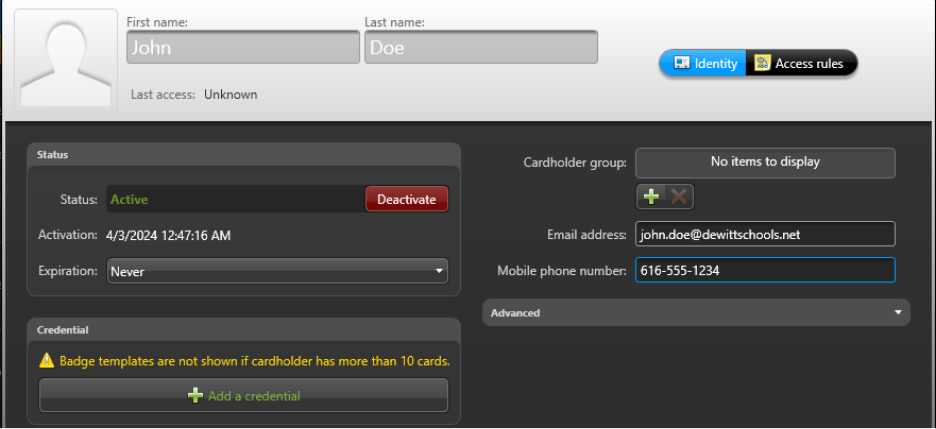
Type in the Person’s Name, (Optional but encouraged) email address and mobile phone number.
-
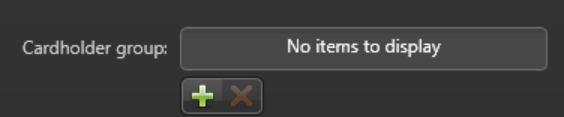
Next, click the + sign under Cardholder Group
-
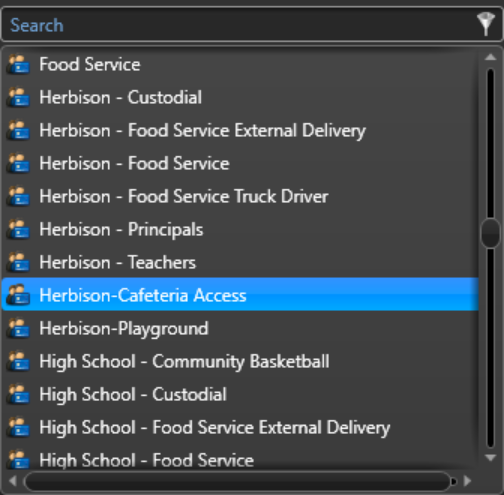
Find the applicable Group(s) and click okay. You can have more than one Group.
If you have access to a door reader or an enrollment reader, skip to step 9
-
Next, Click “Add a credential” you can choose “manual” if you don’t have access to a door reader or enrollment reader.
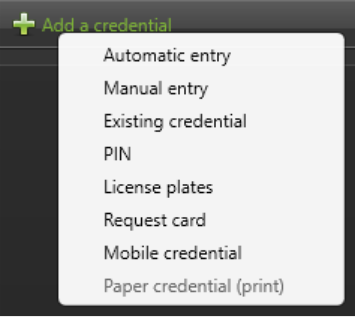
-
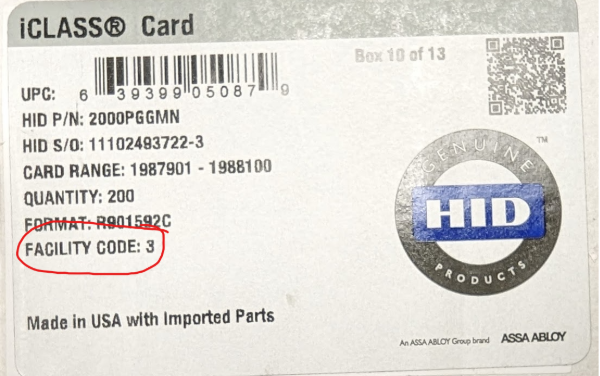
Choose the type of card you have and enter the facility code (found on the side of the box of cards)
and the card number (found on the bottom of the card. *See Examples
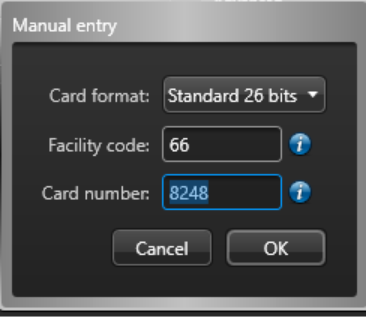
Example (Not your facility code)
The card number is usually the first 5 digits of the number at the bottom

-
If you have access to a reader select “Automatic Enrollment”
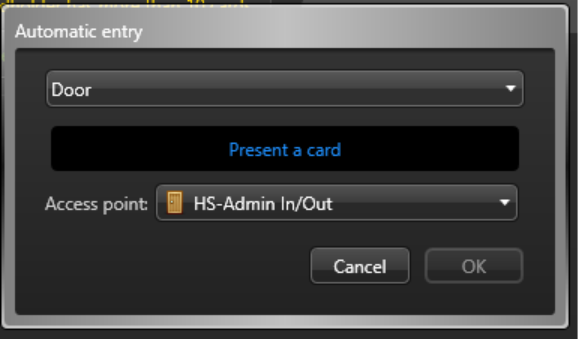
Use the Drop Downs to Select the Enrollment Reader or a Door
Then choose the door closest to you.
Swipe the badge to the reader and the credential will be added.
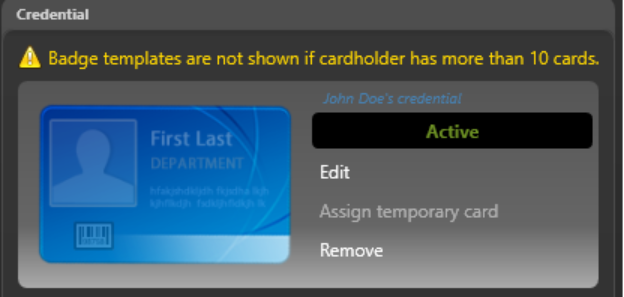
Click Save and Close, and you’re done!
No comments to display
No comments to display